 USD
USD


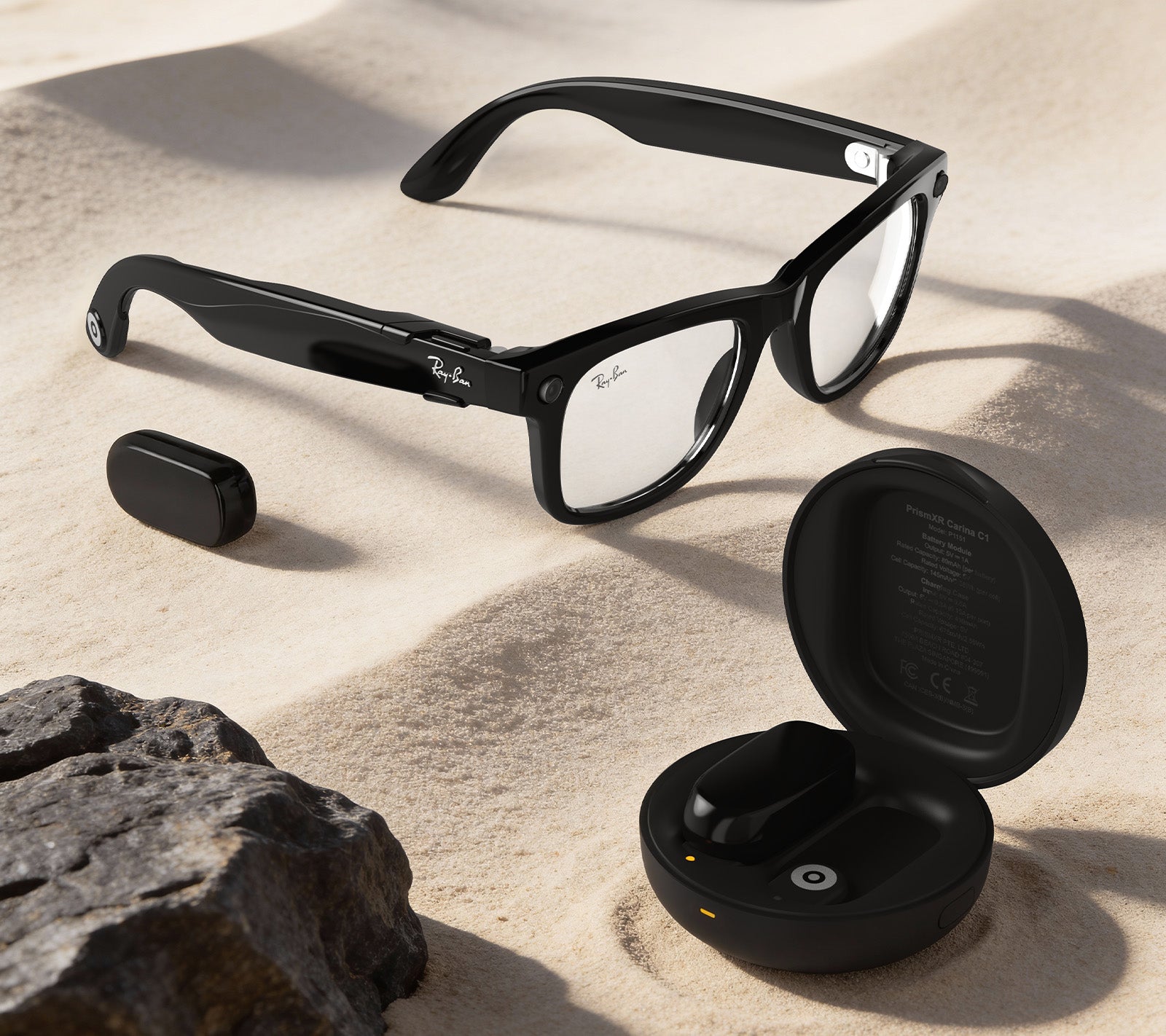
Owning a pair of Ray-Ban Meta smart glasses opens up a world of hands-free photography, audio, and AI interaction. However, to keep this experience seamless, understanding your device's power management is crucial. A common point of confusion for new and existing users is the charging process. This guide provides a definitive answer on how to charge Ray-Ban Meta glasses, ensuring your smart eyewear is always ready for action.
How Do I Charge My Ray-Ban Meta Glasses?
The primary and official method for charging Ray-Ban Meta glasses involves using the included proprietary charging case. This case is not just for storage; it's an essential power hub.
Your Ray-Ban Meta glasses are charged exclusively through their dedicated charging case using a USB-C cable. The glasses themselves have no ports and cannot be plugged in directly.
Here is the step-by-step process:
- Place the Glasses in the Case: Align the glasses so the temples sit correctly in the molded slots inside the case. You will feel a magnetic connection click into place, securing them and initiating contact with the charging pins.
- Connect the Case to Power: Use the provided USB-C cable to connect the charging case to a power source. This can be a wall adapter, a computer USB port, or a power bank.
- Check the LED Indicator: The case features an LED light. A solid orange light indicates the glasses are charging. A solid green light signals that the glasses are fully charged. If the light is off, ensure the connection is secure.
It typically takes about 60-90 minutes to achieve a full charge from empty, providing up to 4-6 hours of mixed use, including audio playback, calls, and photo capture.
What If My Ray-Ban Meta Glasses Aren't Charging?
Encountering issues when you attempt to charge Ray-Ban Meta glasses can be frustrating. Several factors could be at play.
Most charging failures are due to poor contact points, cable issues, or a depleted case battery. Systematic troubleshooting usually resolves the problem.
Follow this diagnostic checklist:
- Clean the Contact Points: The small metal pins inside the case and on the temples of your glasses can accumulate dust, lint, or skin oils. Gently clean both sets of contacts with a dry, soft microfiber cloth or a cotton swab.
- Inspect the USB-C Cable and Source: Try a different USB-C cable and a different power adapter or USB port. The issue may lie with the accessory, not the glasses.
- Ensure the Case Has Power: The charging case has its own internal battery. If the case battery is completely dead, it cannot pass charge to the glasses. Connect the case to power for at least 15 minutes before trying again.
- Check the Alignment: Make sure the glasses are seated perfectly in the case. The magnetic pull should hold them firmly. Try removing and re-seating them.
- Look for Physical Damage: Examine the charging pins on both the glasses and the case for any signs of bending or damage.
- Restart the Glasses: While wearing them, press and hold the button on the right temple for 10 seconds until you hear a shutdown sound. Wait a moment, then press the button again to turn them back on. Sometimes a simple reboot can clear a software glitch affecting battery reporting.
If none of these steps work, consult the Meta View app for device status or contact Ray-Ban/Meta support for further assistance.
Can I Charge My Ray-Ban Meta Glasses While Wearing Them?
The idea of charging Ray-Ban Meta glasses without interrupting long recording sessions or podcasts is understandable. However, the official design does not support this. With official accessories, you cannot charge your Ray-Ban Meta glasses while wearing them. Charging requires placing the glasses in the dedicated charging case.
However, the smart glasses market is constantly evolving, and third-party innovators are developing solutions to overcome this limitation. For users who need uninterrupted charging for extended periods, such as content creators, travelers, or professionals who use AI features throughout the day, the PrismXR Carina C1 is an ideal choice.
Extend My Ray-Ban Meta Battery Life for All-Day Use
Maximizing battery life involves both optimizing settings and considering hardware enhancements.
To achieve all-day power, combine in-app power-saving settings with the strategic use of external battery solutions.
First, manage your glasses' settings via the Meta View app:
- Adjust LED Brightness: Lower the brightness of the capture indicator LED.
- Manage Connectivity: Turn off Bluetooth or Wi-Fi when not needed for transfers.
- Use Voice Commands: Utilize "Hey Meta" for photo capture instead of the physical button to conserve power.
- Limit Always-On Features: Be mindful of features that continuously listen or process data.
For hardware extension, the official method is to carry your charging case and periodically dock your glasses. For a more integrated and continuous solution, products like the PRISMXR Carina C1 offer a novel approach. This system provides All-Day Power & Dual Charging Options through swappable battery packs or a snap-on magnetic cable, designed to keep your glasses powered without interruption. Each battery adds 2 hours of use, and with a combined 965 mAh capacity from the two batteries and the charging case, you can enjoy up to 12 hours of total power.

Carina C1 Charging Kit for Ray-Ban Meta Glasses
Its Invisible Fit & All-Day Comfort is achieved through an ultra-slim LDS circuit design that extends the charging contacts without adding bulk. Each mount is just 1mm thin and weighs only 3.8g, keeping your glasses sleek, comfortable, and virtually unnoticeable while wearing. Crucially, it enables you to Charge While Wearing, keeping your glasses charged and ready during recording, AI chats, or music playback. It is Case & Stand Compatible, working seamlessly with the original charging case and the PRISMXR Carina S1 stand without removal.
Conclusion: Mastering Your Smart Glasses' Power Cycle
Understanding how to charge Ray Ban Meta glasses is fundamental to integrating them smoothly into your daily life. The official ecosystem, centered on the magnetic charging case, is designed for convenience and reliability. By following proper charging protocols, performing routine maintenance on contact points, and utilizing power management settings, you can ensure consistent performance.
For power users whose demands exceed the standard battery cycle, the emerging ecosystem of compatible accessories presents compelling solutions. These innovations, which allow for hot-swapping batteries or even charging during wear, transform the smart glasses from a device with intermittent uptime into a truly all-day companion. Whether you rely on the standard kit or augment it for extended use, proper power management is the key to unlocking the full, uninterrupted potential of your Ray-Ban Meta smart glasses.
Frequently Asked Questions (FAQ)
How long does it take to fully charge Ray-Ban Meta glasses?
A full charge from 0% to 100% typically takes between 60 and 90 minutes when using the provided charging case and a compatible USB-C power adapter. Charging from a low-power source like a laptop USB port may take longer.
Can I use a wireless charger or a third-party charging dock?
No, you cannot. Ray-Ban Meta glasses do not support Qi or other wireless charging standards. Furthermore, they are not compatible with third-party charging docks or polarized clips due to their proprietary magnetic pin layout and communication protocol. Always use the official charging case or verified compatible accessories like the PRISMXR Carina system that explicitly states compatibility.
What should I do if the charging case LED light doesn't turn on?
First, ensure the USB-C cable is firmly connected to both the case and the power source. Try a different cable and power adapter. If the light still does not illuminate, the case's internal battery may be deeply discharged. Leave it connected to power for at least 30 minutes. If there is no response after this period, the case may be faulty and require service or replacement.